
How Trimlight Works / App Controls
This guide will go over the basics of how the Trimlight app works. For additional information, please visit the Trimlight website.
Connecting to Wi-Fi
To be able to control your lighting system remotely via the app, you’ll have to connect it to a local Wi-Fi network. The connection must be very strong — otherwise, you’ll have to operate it in offline mode, which will disable certain features.
To pair with a local Wi-Fi network, make sure your mobile device is connected to it first, then press the plus button in the upper right corner to add the device. Follow the prompts on the screen to pair the controller to the internet.
For troubleshooting help, visit the Trimlight website.
Using the Controller
Preset Patterns
On the main screen, you’ll see a dial, which contains 180 default programs to choose from. The colors of the ring coordinate to the categories below — Rainbow, Comet, Snake, Wave, etc. The white arrow button located to the right of the dial allows you to reverse the direction of any pattern.
The three sliders underneath the dial allow you to change the brightness, speed, and sequencing spacing of your chosen lighting pattern.
The “Add to Library” button allows you to save one of these default patterns to your library for future use.
Creating Custom Patterns
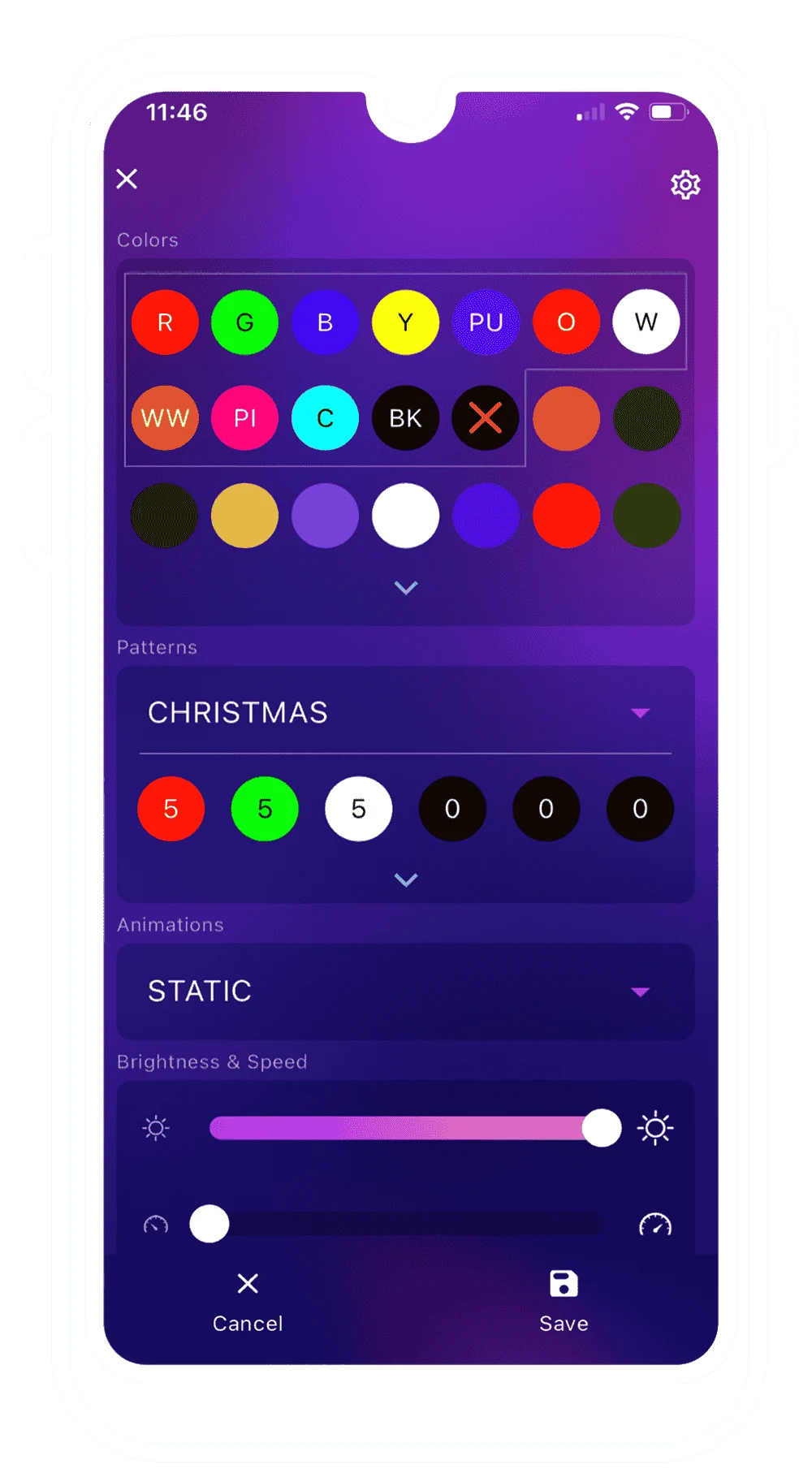
If you’d prefer to build your own custom pattern, click the paint palette on the bottom left of your screen. You’ll see options for colors, patterns, sequences, zoning, movement, brightness, and speed. Play around with these options until you create the desired effect.
Music Functions
If you’d like to add music to your lighting display, click the music note icon at the bottom of your screen. The top of the screen will then show 18 different pattern options for the system to react to the music. The sliders allow you to control the music sensitivity and sequencing length, while the color spectrum allows you to choose your preferred dominant color for the chosen pattern.
Underneath that, you’ll see the Player, Microphone, and AUX IN buttons. Player Mode allows you to choose music that’s downloaded to your device as an MP3 (not from a streaming service). Microphone Mode allows the lights to react to any sound that’s received through your device’s microphone. AUX Mode works the same as Microphone Mode, except instead of the lights reacting to sound that comes in through the microphone, it reacts to sound received through the auxiliary port on the controller.
Scheduling
To create a schedule for when your lighting should turn on and off, click the calendar button on the bottom right of your screen. Here, you’ll see your pattern library — all your favorite patterns you’ve saved for future events. Below that is the Combined Effect button, which allows you to use multiple patterns on a repeating interval.
At the very bottom is the Schedule button. Use the Daily Schedule feature to have the system turn on every day, night, weekday, or weekend. Use the Yearly Calendar function to choose a specific day or days and assign a pattern to them.